Website powered by

Anyone smell burning plastic?

Work In Progress / 03 August 2018

Thought I'd post a quick update since I haven't had much to say in a while. My 3D printer arrived this week so I've been spending a lot of time studying up on the process before it got here and now setting up and fiddling with it. 

So now starts the process of re-designing my scanner for automated manufacturing in some kind of kit form :) 

1st steps are figuring out what to make the large flat side and top panels out of as I don't think printing those would be a good idea. Rest of the parts should be straight forward. More updates to come.

For now here's a timelapes of the 1st test pattern print making sure everything was set up right.


HP Z 3D Scanner Testing

General / 13 July 2018

A little while ago I was contacted by HP to see if I was interested in being part of their beta testing group for the new HP Z 3D scanner. The Scanner sits on top of your monitor similar to a webcam but faces down to your desk below which becomes your capture area. Check out the their video to see how it works https://www.youtube.com/watch?v=oBO-0LC1nNM

The setup is pretty painless, just plug it in like a webcam and install the software to get up and running. Being experienced with traditional photogrammetry workflows and my recent surface scanning projects i was interested in seeing how this would work, and it worked pretty much as advertised. The meshes below took about 5-10 min each to scan start to finish, way faster then shooting a series of images and then processing.

What you gain in speed you lose some in resolution which is understandable. The meshes aren't as detailed as something as I would generate out of Photoscan but the software has Allegorithmic's B2M integrated to generate normal and roughness maps. For the texturing it has a 14mp camera where it will capture images of the object and map them automatically. 

I have to play with it more but overall I'd say it works pretty good. Some objects work better than other and concave meshes seem to work best, this is the same for photogrammetry in general. I was surprised how well it handled thin objects with undercuts (See Sandal below) for constructing the mesh, sometimes though it has a hard time with the texturing of the thin edges. But if you take these meshes as just a starting points to edit your mesh your off to a pretty good start. 

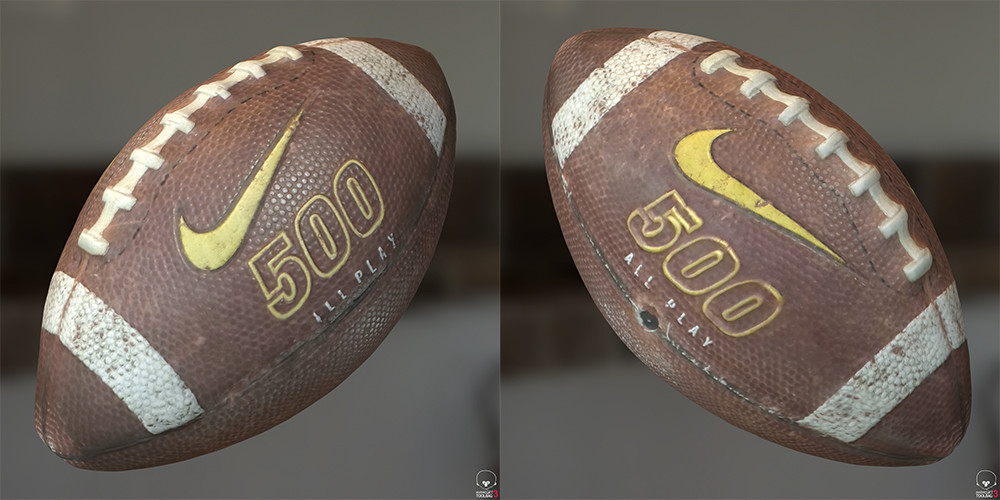
All the meshes below are the raw scans and maps rendered in Marmoset. I've included a Marmoset viewer for each so you can see the mesh, maps, and look around the objects. 

The football worked really well, almost perfect. 

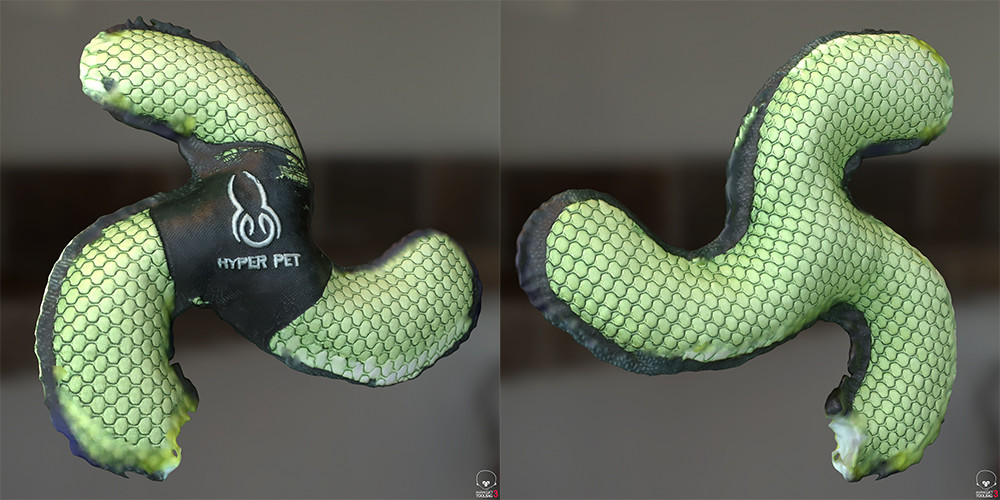
The dog toy also worked really well considering how thin it is. Some of the textures on the thin edges has some issues though.

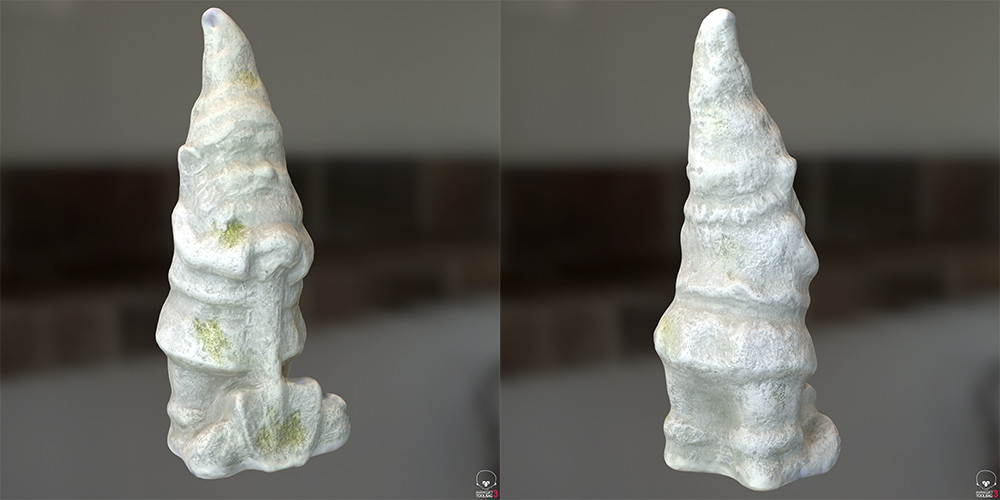
The Gnome also came out practically perfect. I use this statue as a control test in most of my work. You can see what it looks like when processing in photoscan https://www.artstation.com/artwork/lXNXk Pretty similar except in PS I was also baked AO maps from the model.

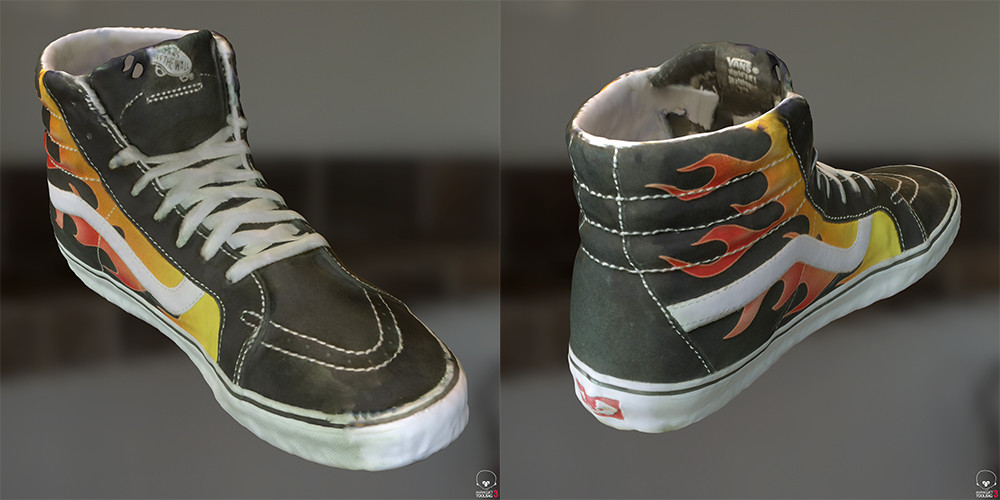
The shoe also did pretty good and handled the thin edges well. The texturing had a hard time in a few spots but not bad overall.

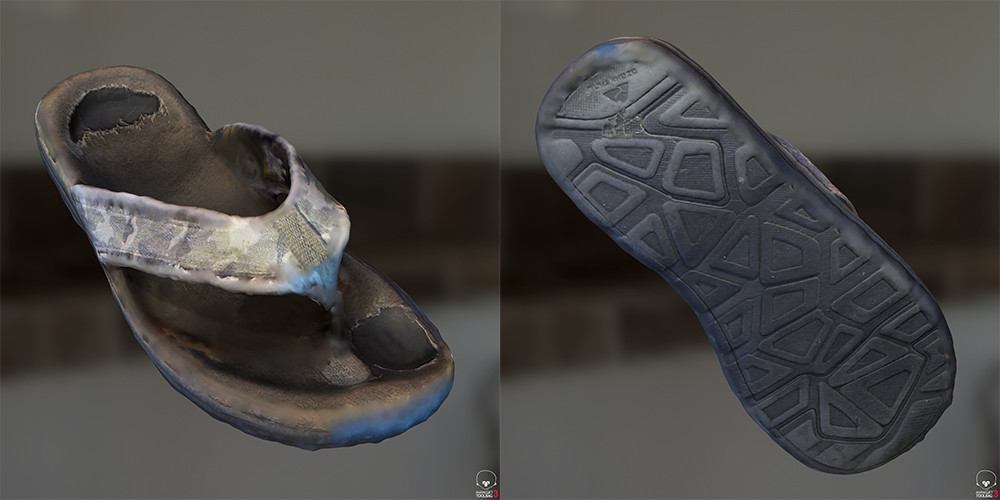
I was surprised how well the Sandal mesh generated as it picked up the full strap above and below. The texturing had some issues though, could have been something I did, but the bottom texture came out pretty good.

That's it for now, I'll update with new scans as they come. 

Also I'd like to thank HP for reaching out to me to see if I wanted to play with their new toy :)

Installing Polarizers

General / 09 July 2018

Today I got around to installing the polarizing film on the new lights in the scanner. It’s a slightly modified version of the idea I had earlier where the filters would flip foraward and back over he light.

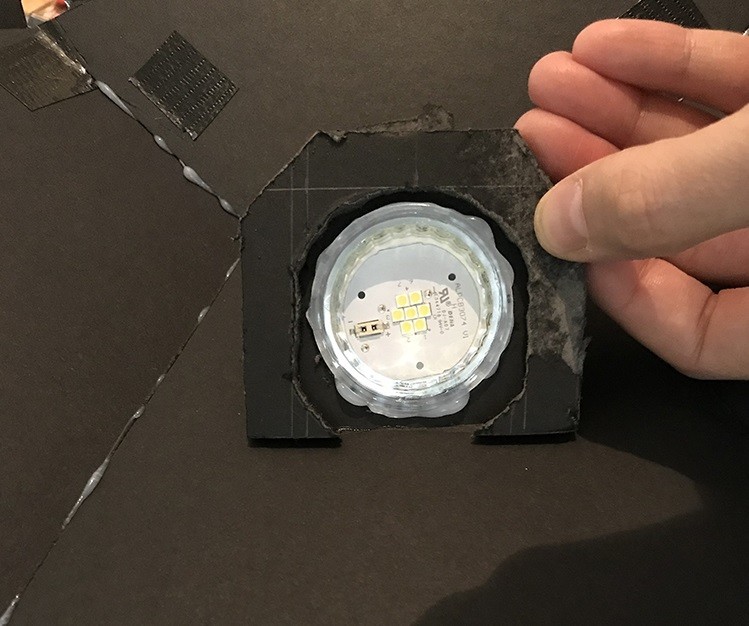
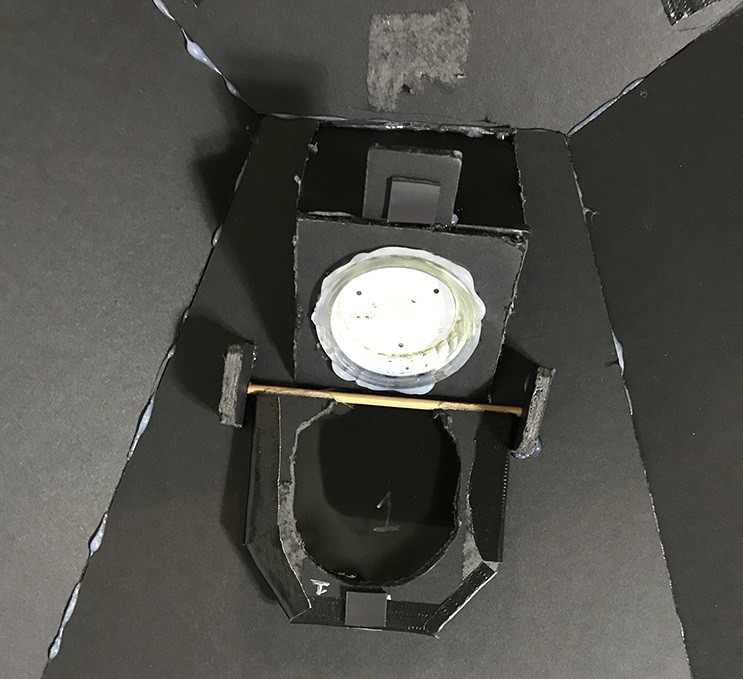
After I cut out the four blanks I needed to cut out the centers. For this I’m using a Dremel with a rasp bit so I can carve out the curved design.

Here the final shape that will be covered by the film.

Just test fitting to make sure the panel will clear the light. The film will be on the outside of the panel so the light will slightly recess into the panel when engaged.

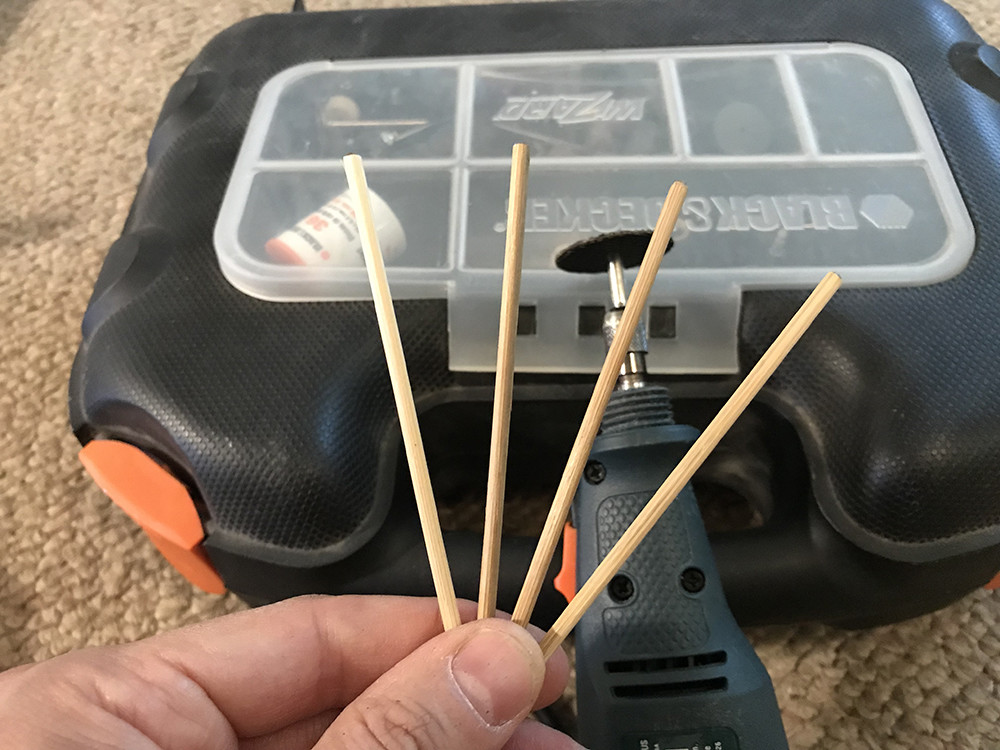
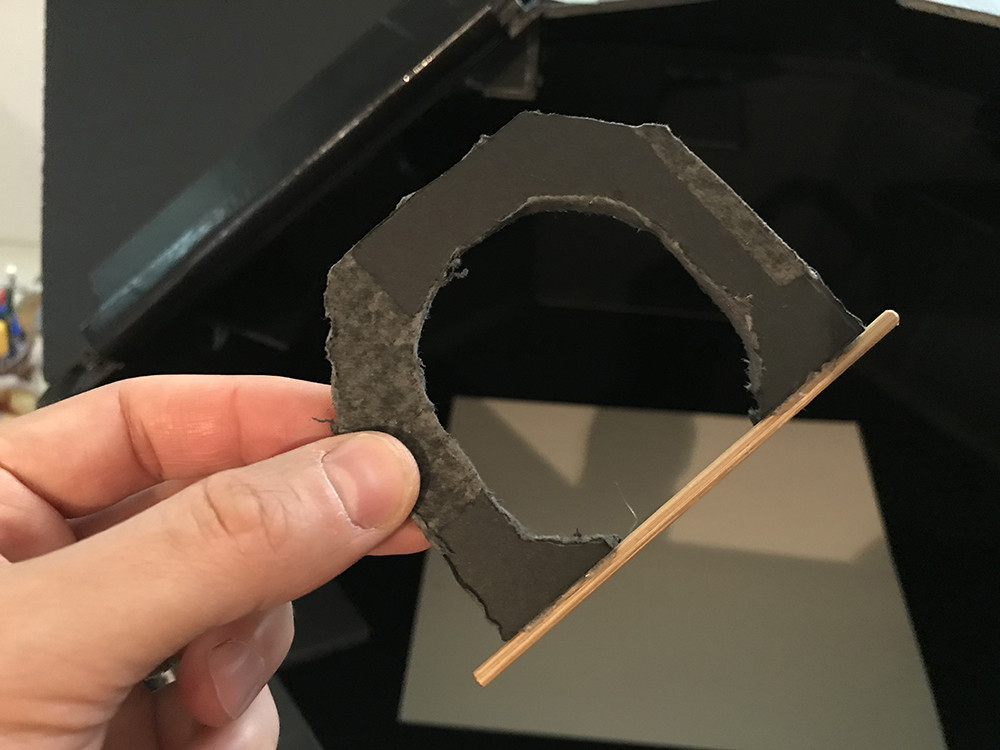
Next is the axles that the panels will rotate around. These are just Shish kebab sticks that I cut down with the dremel and glued to the panels.

The sticks are slightly longer then the panel so the ends can be attached to the scanner and with the sticks glued on they add structural support to the bottom of the panel.

Next was attaching the polarizing film. I had to mark the films direction so I could make sure they were all facing the right way during the installation.

Here’s what a finished panel looks like. The film is just taped onto the panel and you can see the flat magnet at the end of the panel. I’m using the magnets to hold the panels in there open/closed stated.

And this is a completed light. The 2 foam core pieces on the ends of the panel have slots cut into them for the axel to sit in allowing them to freely rotate in. Also a small platform was added at the end of the light to hold the magnet that keeps the panel engaged, there is also a magnet on the outer wall the holds the panel open.

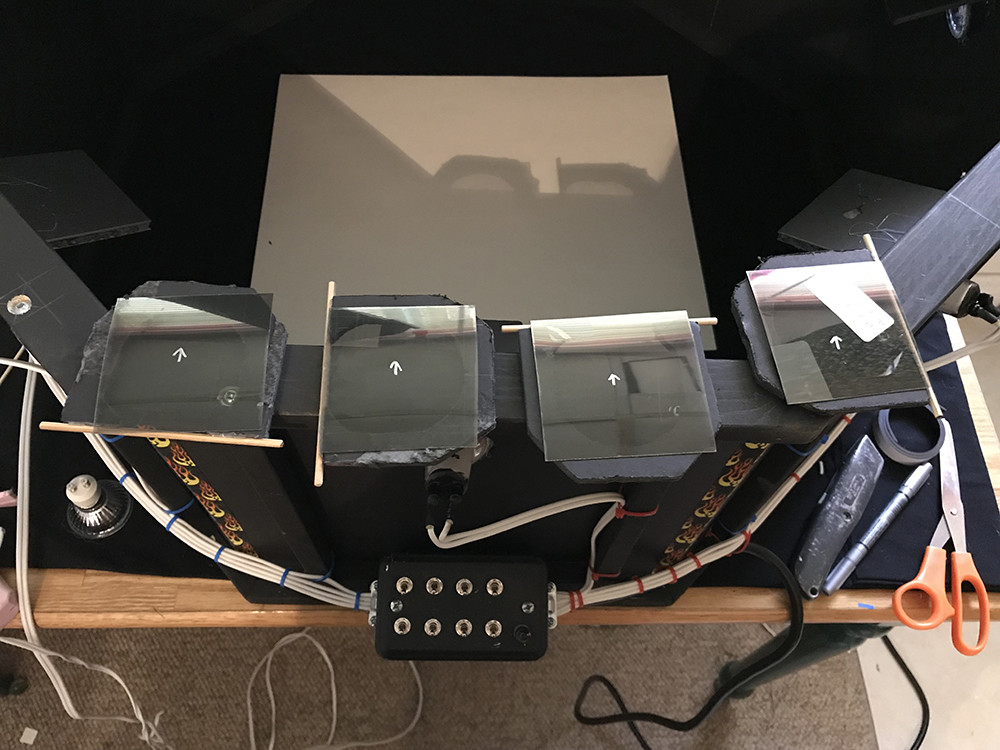
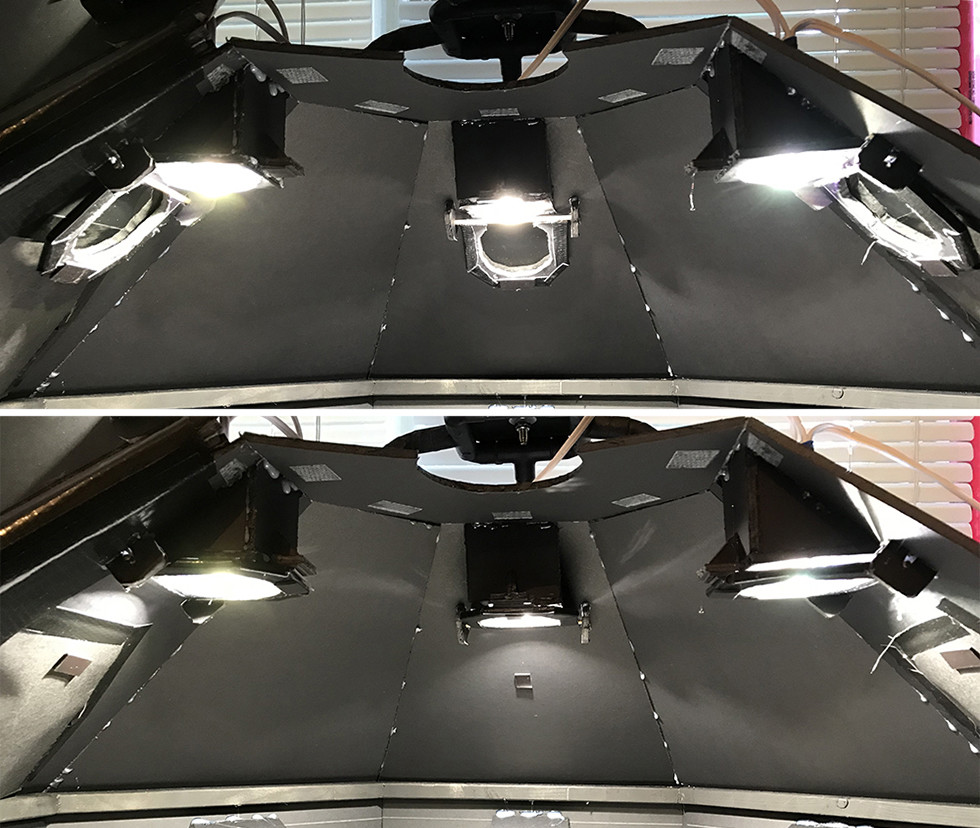
Here’s the other lights showing the panels in the open and closed states.

Same as above image but with the lights on.

So that’s all for the lights, they are all ready to start scanning shinny things. 

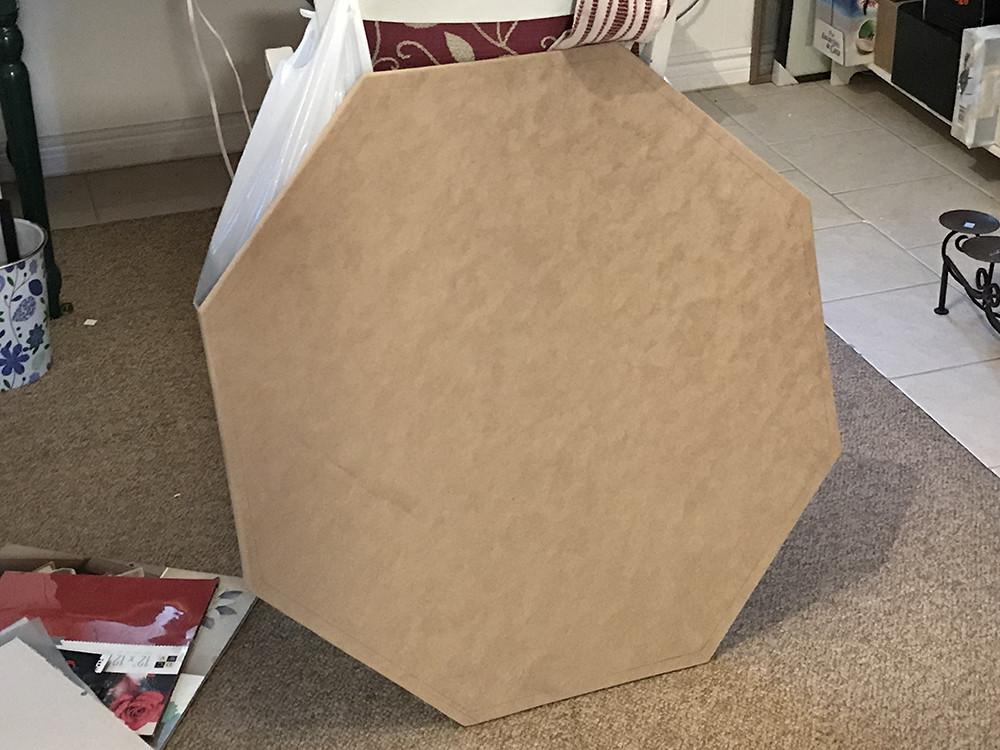
This weekend I was working on some other construction projects around my house so I decided to cut out a base for the scanner while I had the tools out. This will eventually house the underlighting for capturing transparency and some kind of device to stretch fabrics flat.

That’s it for this update. I’ll try to post some new test scans this week and stay tuned for updates on the base integration.

Thanks for reading.


Allegorithmic Blog

Making Of / 09 July 2018

I recent realized that back when I had a article posted on Allegorithmic's blog about the scanner I built and my process using the Photometric Stereo scanning nodes added to Substance designer, I never linked to in in my blog.

So I'll just leave this here :)

Question for a Friday afternoon...

General / 06 July 2018

I have a question for anyone that has been following my scanning work. You may notice that I have a "Store" button on my page now, I was able to get into the Beta. 

So the question I have would there be any interest if me putting a tutorial on how to build a surface scanner like mine? 

  • Maybe just detailed plans with material lists? 
  • Or a construction walk through video? 
  • Or maybe physical built to order scanners?

I'll probably add some of the scan materials I've already done but I'm trying to gauge interest in scanner construction material. 

If you have any thoughts let me know in the comments below.

Thanks. 

PS, I'll probably be adding some feature to the scanner this weekend so stay tuned for updates.

Scanner Upgrades

Making Of / 04 July 2018

Going forward with adding the ability to used cross polarized light meant adding some lights and in the process I made some other adjustments.

Since I was adding lights to the roof of the scanner facing down I had to loose the shroud around the lens that was blocking flare from the lights. To solve the flare issue I added shades on each light which also blocks me from being blinded when looking into the scanner, should have thought of this the first time.


Next was the lights in the top of the scanner. I added 4 lights by square columns and cutting them into the angled roof panels.

Since 1 of the lights would end up on the front panel having it removable wasn’t really going to work anymore so now it is hinges on one side and flips up and out of the way.


The top lights are wired together to 1 switch so now there will be 9 switches in total.

Next steps are to add the polarizing panels. Below is a earlier idea that I’ll probably go with. Each light will have a panel that will pivot in/out of place and be held in place with magnets.


That’s it for now, should have some more test scans soon. The extra benefit of the top lights is it will fix the falloff issue I was getting when trying to scan large areas. 

Thanks for reading.


Capturing Roughness

Making Of / 18 June 2018

I haven't posted for a while as I've been working on a few different projects, one war cross polarization.

I've been kicking around the idea of using cross polarization in my scanner since I built it to try and capture the roughness of the surface material, and I finally got around to trying some ideas. 

I tested with 2 objects, a leaf from one of my plants in the house and a piece of red vinyl which was one of the original surfaces I scan when I started doing surface scanning.

Here's what the final leaf and and vinyl materials look like rendered in Marmoset.

Keep reading past the pretty pictures to see how it was done.


So to start I needed to add some lights to the scanner because I needed the lights facing straight onto the capture surface.For the initial testing to see if it will work I didn't want to make any drastic changes in case it didn't end up working, so I figured I could hang the lights off the internal baffle I added to keep the glare of the side lights out of the camera lens.


So with this idea in mind I cut out a octagon that would fit right inside the baffle to hold the lights. I went with 4 lights to try and evenly spread the light across the surface.

The trick was finding the right spacing and height that wouldn't interfere with the camera or cast any shadows. 

Once I had the lights glue down I wired them up. For now I just left the end wire long and stuck the wire ends into a extension cord to power them.


My 1st tests running the light were a little discouraging as there was a lot of fall off from the center of the area. I left it for a few days not thinking it was going to work, then I thought about popping the lenses off the lights just like the side lights to see if that helped, and it turned out it did. The lenses were focusing the beams too narrowly even though they were flood lights. With the lenses removed the lighting falloff was much more even.


Then there was the polarizing film. I needed to have a way to add and remove the film so I cut out a insert out of poster board with cutout for the lights and taped the polarizing film over the lights. This way I could easily add/remove the filters from all the lights at once.

Then in was just a matter of screwing on the circular polarize to the camera lens and taping the assembly onto the internal baffles and plugging them in.


And here's the results, on the left is the polarized image of the leave and vinyl and on the right is the image with the polarizesers (lens and lights) removed. The vinyl worked a little better because it could lay flat as the leaf had a few bumps in it.


Once I had the 2 images the rest was the same as usual, shooting the 8 other images with no filters to generate the normal map. Here are the 2 designer graphs. 

To generate the roughness Grzegorz Baran (go check out his ground scans) has suggested to me using a blend node to merge the two images resulting in the roughness map. So you can see that's what I'm doing on the top of the graphs, then converting the map to grey scale, inverting and then adding a level note to adjust to taste.

I'm doing the same for the leaf, except I added a mask to remove the background around the leaf. The mask was a bit off resulting in the black line on one side.


Here's what the roughness masks look like closeup. As I said above the leaf wasn't sitting flat which is causing the hot spots in the image.

I find the vinyl the most impressive when looking at the polarized diffuse image which is basically just a red square and what the final render looks like. 

Now that is seems like the process will work I'm going to look into mounting the lights differently and wiring them into the control panel.

Stay tuned for more to come and comment below if anyone has surfaces they would like to see me scan.

Thanks for reading.
Making Money

General / 30 April 2018

 Trying something new I tried combining some macro photography with surface scanning. For this I used my old Nikon 105mm macro lens.

Here's what the image of the loonie or dollar coin looked like

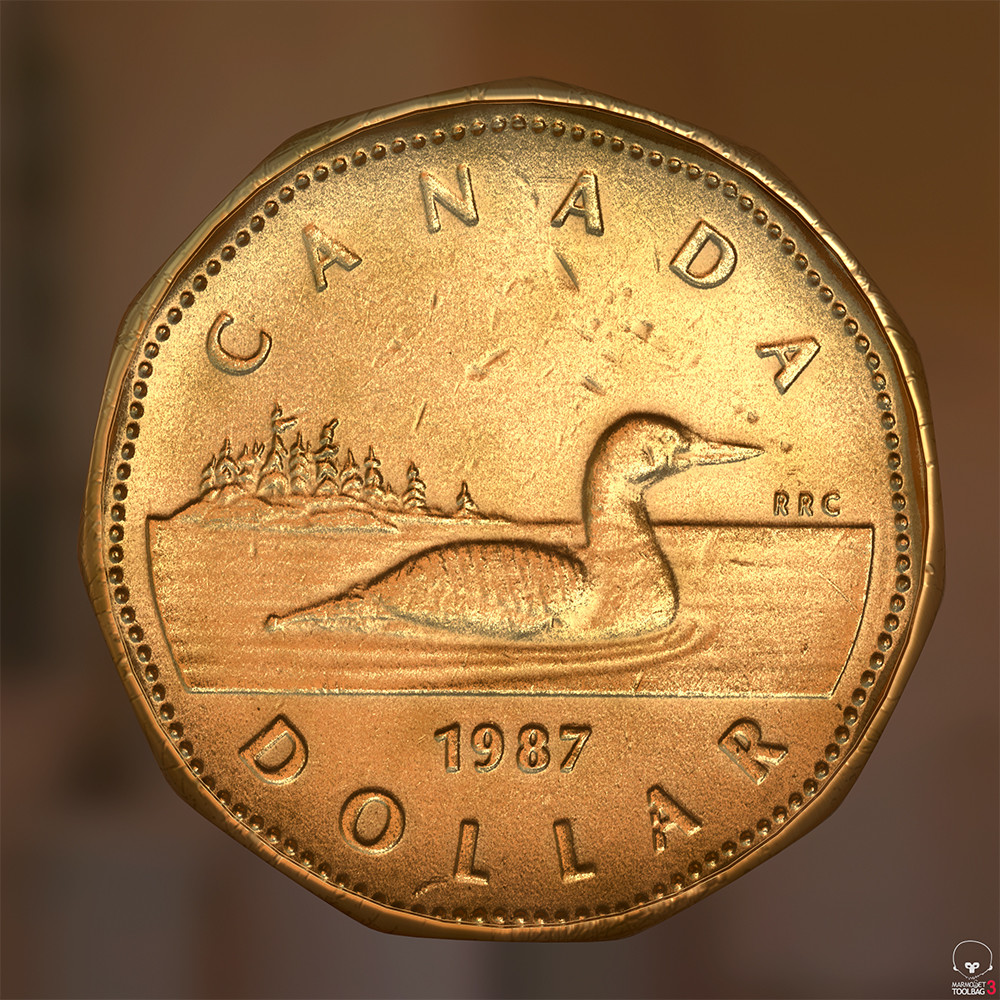
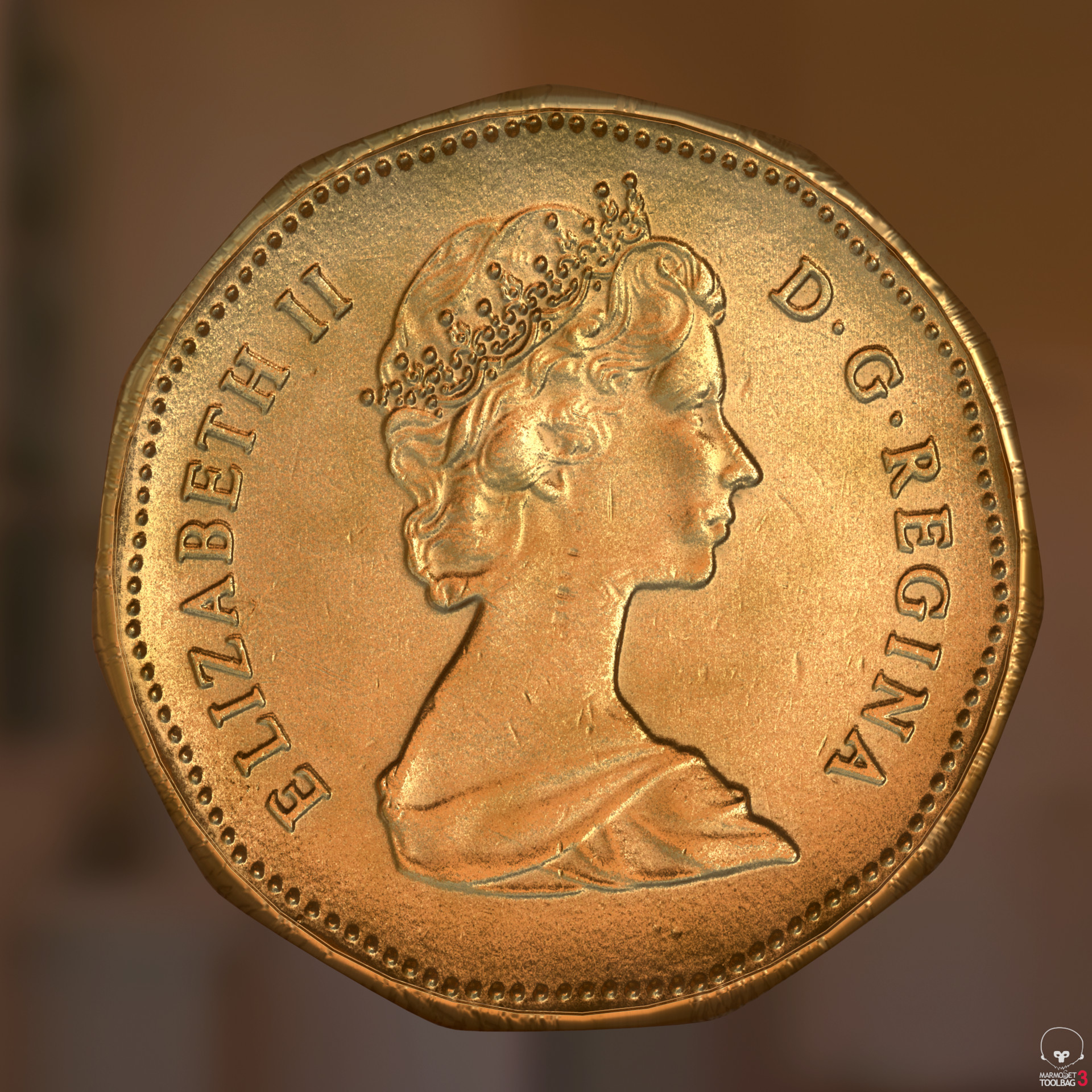
I started using the images for the diffuse but notices it really wasn't adding much because so much detail was coming from the normal maps. Here's what the diffuse and normal for the Loonie ended up looking like

For the Diffuse I used the titanium substance material I got off substance source and added a grunge map of a different colour to break up the colour a bit. I also added a circular mask to mask out the background. Here's what the graph looks like

Here's what this ended up looking like in substance

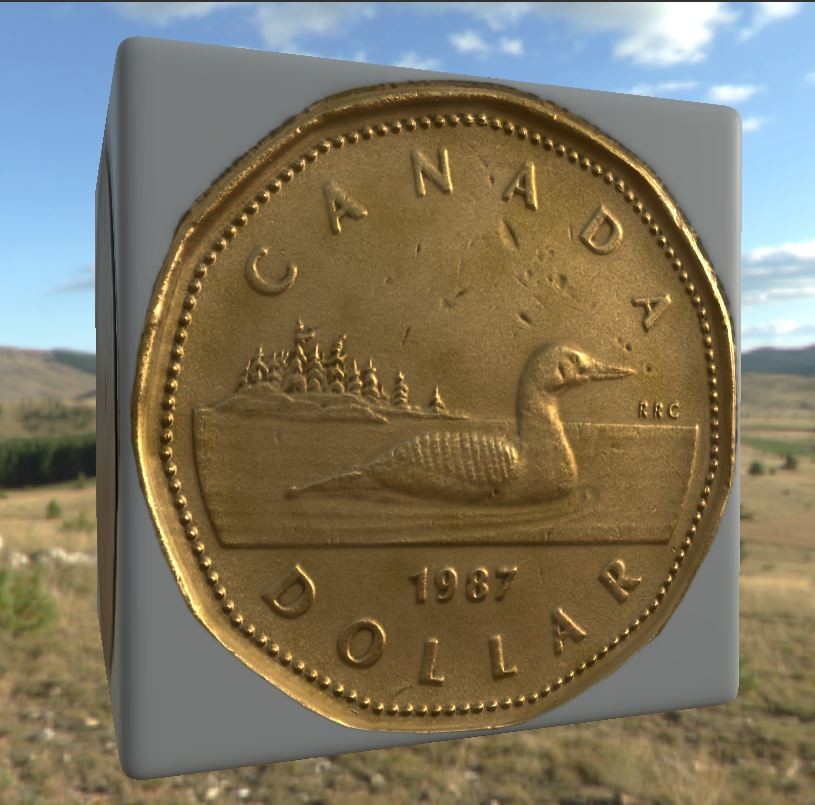
and in Marmoset


Follow the link to see more renders and some video turntables in my portfolio

https://www.artstation.com/artwork/5kXgE

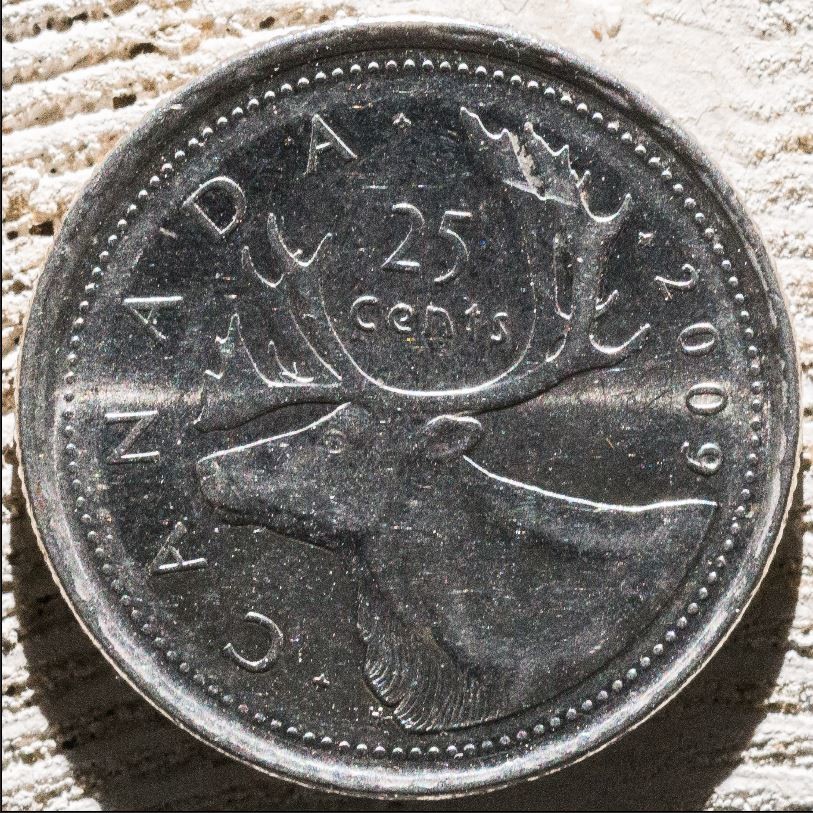
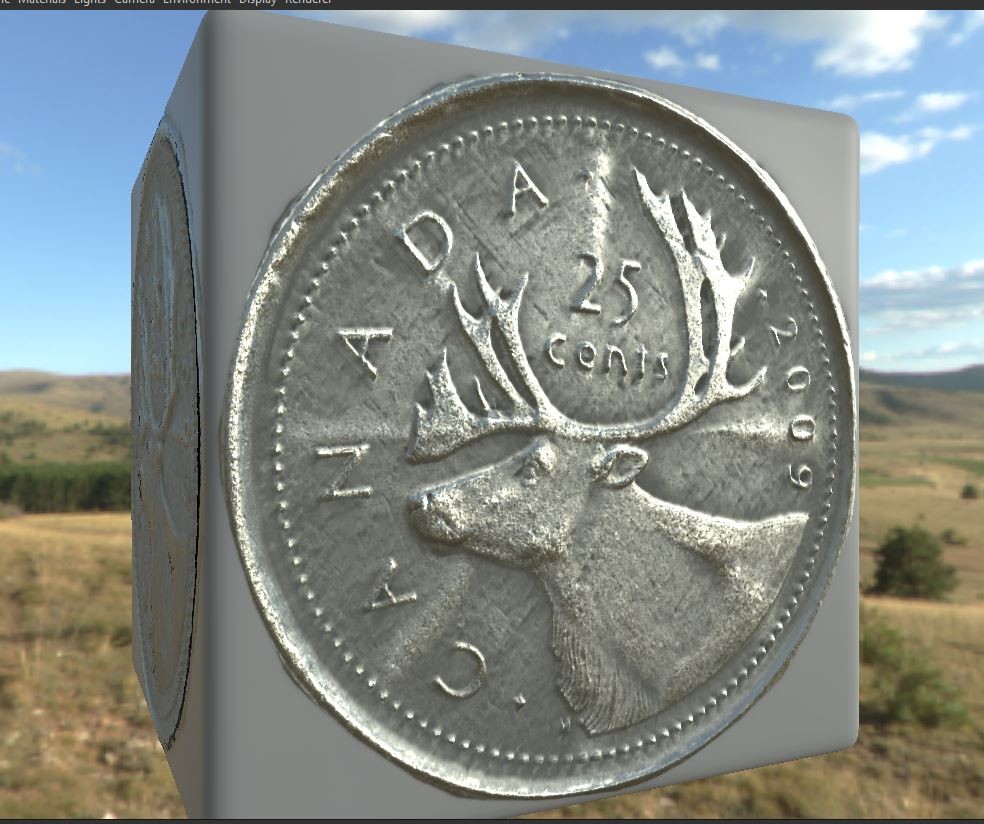
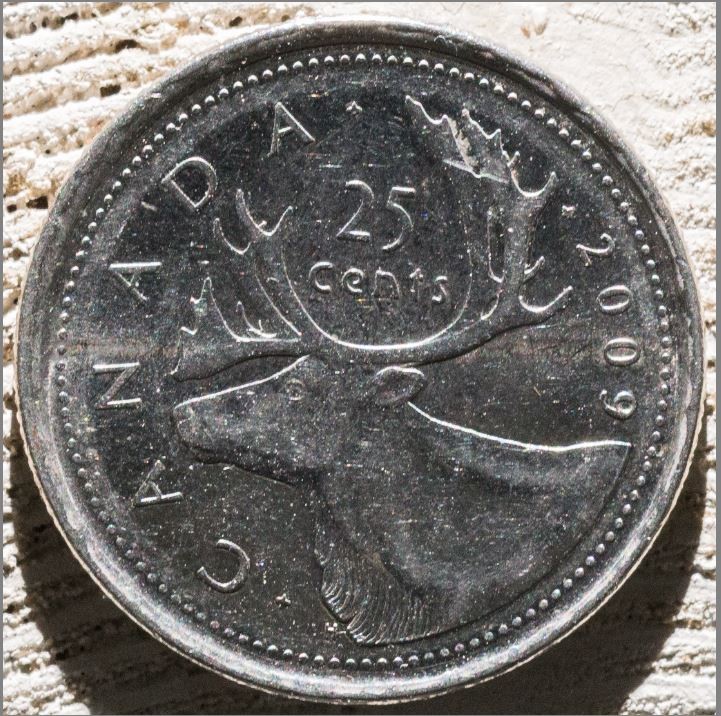
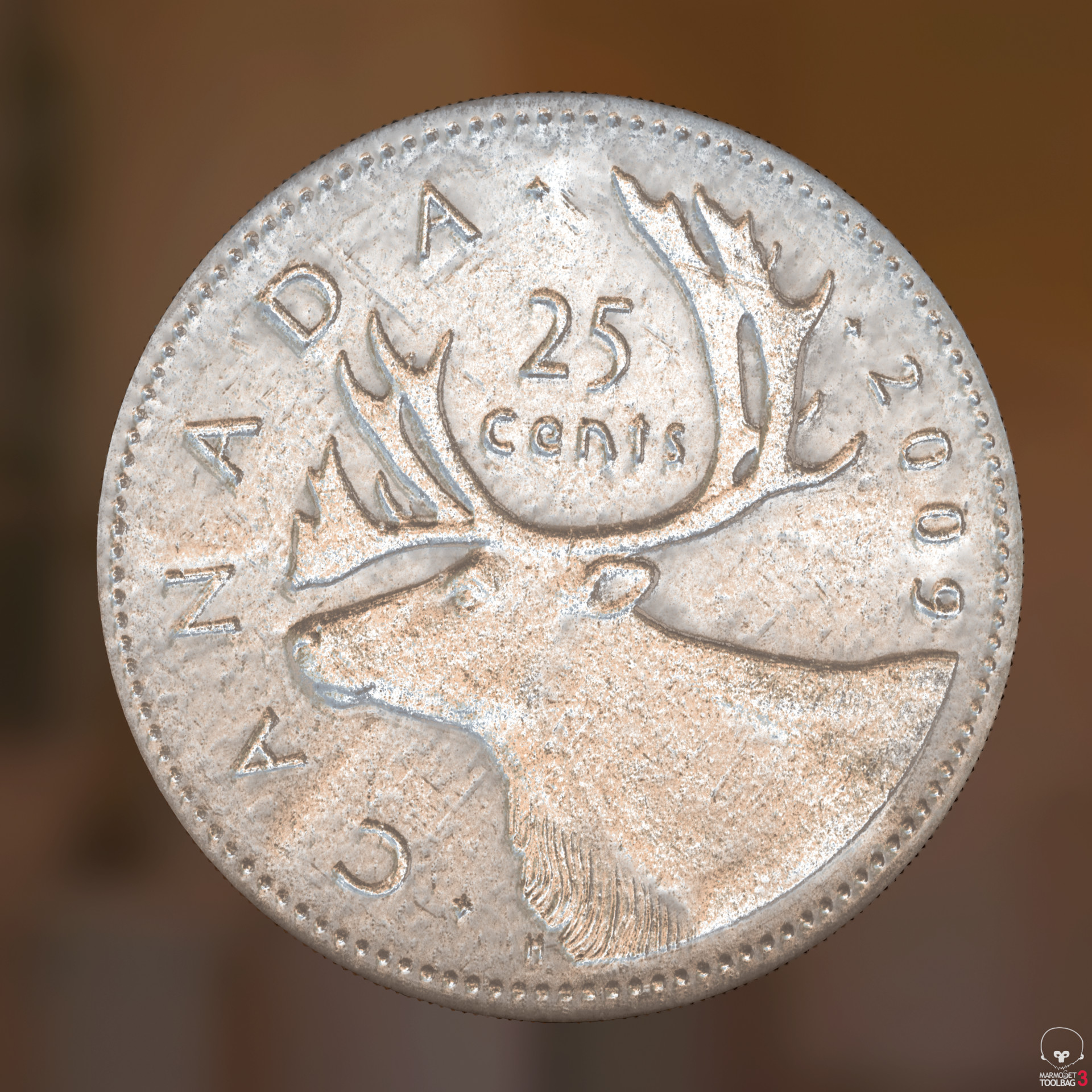
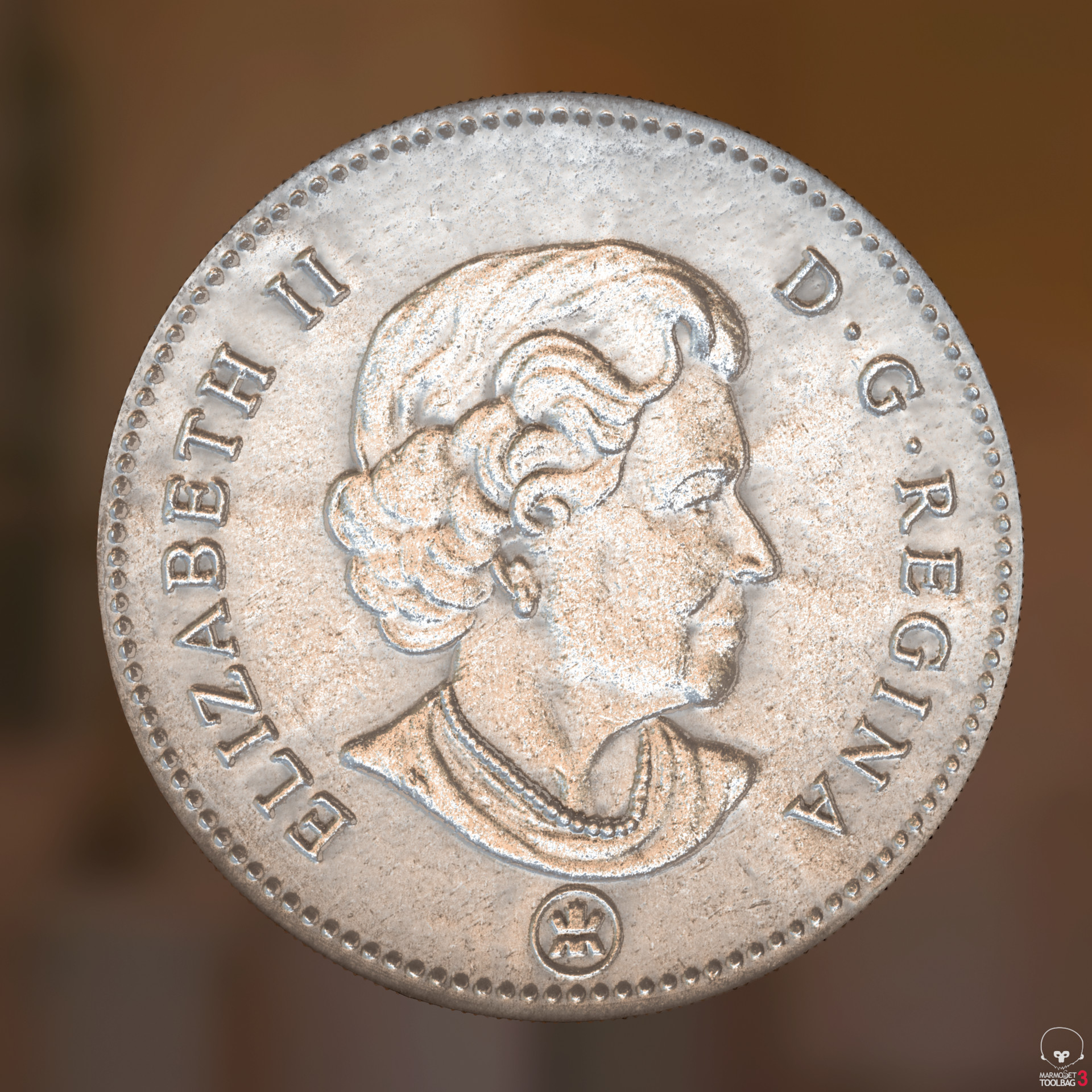
The quarter was pretty much the same process except I changed the metal node to a silver one, also there a few issues.

Because the silver quarter was still extremely shiny there the lights cast a hotspot line parallel to the light. I thought of trying to add something to dull the finish but because of the magnification anything I added would show up in the normal map.

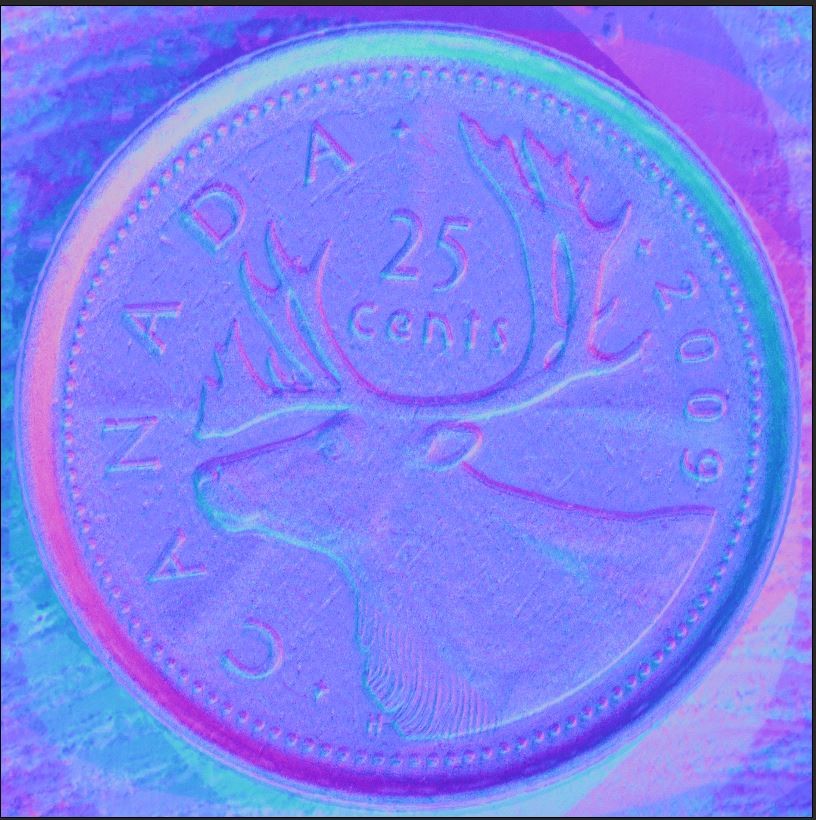
Here's what the hot spots looked like and what they were doing to the normal map. You can see in the normal 2-3 bumps running across the coin.


Then I had the idea of just paining out the hot spots in lightroom because I wasn't using the image anyway. I ended up using adjustment brushes to painting some  negative hightlights and exposure on the 8 images.

Here's the mask and the end result


and this was the final results 

Here's what the diffuse and normal ended up being

and rendered in Marmo

Follow the link to see more renders and some video turntables in my portfolio

https://www.artstation.com/artwork/5kXgE

I have a few other coins to try and a few silver dollars, they are very old though so they have lost there shine which should help the process.

What I like about this is the look of the coin is totally adjustable since no image is used. 

That's it for now. Thanks for reading.

Carpet Mashup

General / 16 April 2018

On the stairs in my house we recently added these carpet treads as one of our dogs was having issue with the stairs. Looking at the pattern on the ends, I though this would be a good experiment to see if I could scan a piece of one of these treads and create a carpet from it. 

If you want to see some renders from Marmoset follow the link to my portfolio https://www.artstation.com/artwork/b1zbE 

To start things off, here's the portion of carpet that was scanned and the crop area in Lightroom.


Here's a overview of the whole graph. now that it's done I could probably go back and optimize if by moving some of the switching I'm doing up stream. 

The graph started as all my others do. Nine images, one Diffuse, eight light angles images. After the normal was generated a Smart tile node was used to adjust the scan and trim off a bit of the right edge.

Here's what the output of the tile node looked like. You can see the red square which is the edge of the texture and how it tiles.

Next was turning this piece of carpet into a full rug. To do that I used the Tile Generator node. The generator was set to a 3x3 grid with 3 inputs. The left and right sides of the rug was simple, the left input was connected directly and the right filters the same input though a transform not to rotate is 180 degrees. To create the center field of the carpet I mirrored the section that didn't have the edge pattern and used some clone patch nodes to remove symbols in the original texture. The nodes were then copied for the normal, I supposed I could have used the multi clone patch nodes... For the height map 3 textures were created off the the 3 normal map nodes.


After all the combining this is what I end up with for a Diffuse. 


 From the combined maps the rest of the channels were generated. The center looked a little too plain so I decided to clone the small brown symbol in to the center. Also I layered on a grunge map into the normal channel to add some wear marks onto the carpet.

And after all that we end up with this. You can see the bumps running the length of the carpet coming from the grunge map. It adds a little something to the material and hides some of the tiling issues :)

After I finished I started experimenting with different patters and ended up with 3 that I liked. To manages it all I ran all the final outputs into 2 switch nodes for each channel, then into a basic material and then into the outputs so I could easily switch between version to render the outputs. In the future I could wire all this switch nodes to a common function to switch them all from 1 parameter.

For the 2nd carpet version I took the original output textures and mirrored them to create a interesting pattern, this was then fed into a similar tile generator and reused the previous textures for the center of the carpet.

This is what the  mirrored edge patterned looked like

And this is the final version of the second carpet. Still using the same grunge map to add some life to the surface.

For the 3rd version I used the edge patterns from version 2 and center carpet from version 1 but mirrored the original texture again with different settings to create a smaller strip that I used as a center stripe in the carpet.

Here's what the center stripe looked like.

And here the final third version.

I think these all turned out pretty good, some better than others. Now that it's done I think I could go back and simplify the setup so they all feed into 1 tile node and just switch the inputs.

That's it for now, Not sure what will be next but I think I'm done with carpets for a while. If you have any suggestions or ideas leave them in the comments. 

Thanks for reading.

Building a Rug

General / 02 April 2018

I have this throw rug in my laundry room that has a somewhat interesting pattern and a very deep cut embossing so I figured it would make for a interesting scan. The issue I predicted though was tiling as it already looked like the pattern wouldn't fit nicely into a square. After getting the pictures into lightroom and cropping it seemed I was right.
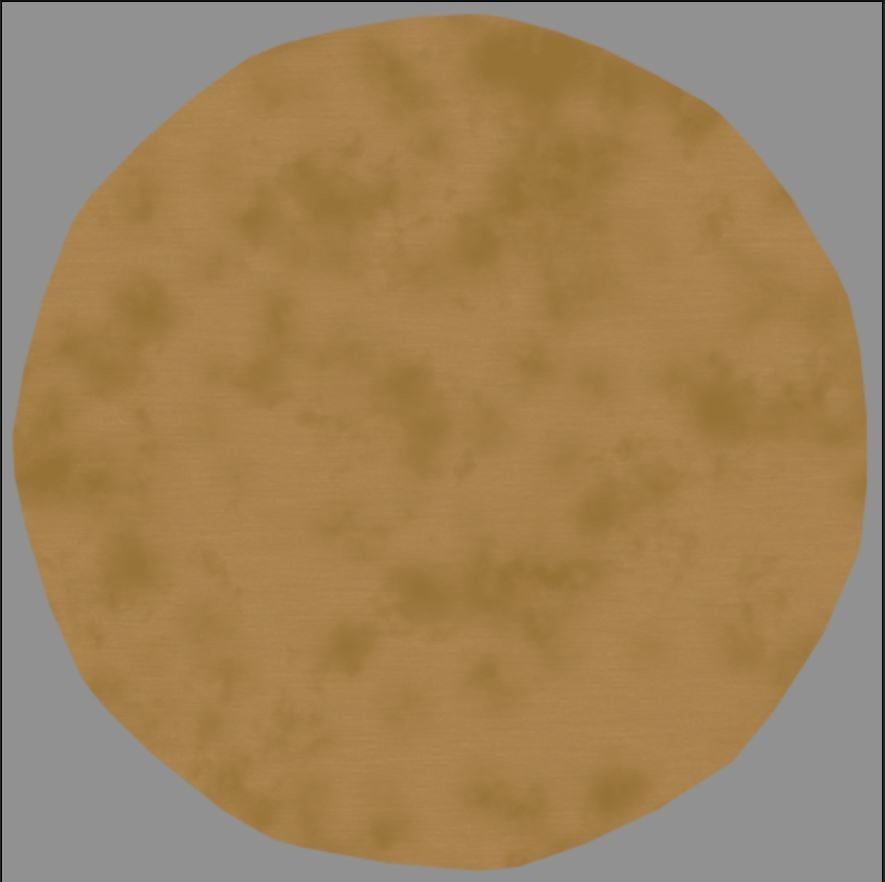
Here's that the starting diffuse ended up looking like in Substance after going though the colour equalizer node to get rid of any hot spots.

I tried a few different way or rotating and tilling this to see what I could do with the patter and ended up on this. I used a mirror node horizontally  (top one) to flip it on it's self to make 1 section of the patter and then used a transform node to rotate it 180 degrees (Bottom). I also mirrored the image vertically before the rotation to ensure it would tile nicely. 

Here's what the images looked like when mirrored horizontally. 

Then the 3 maps were fed into a tile sampler to create the final pattern with the one pattern running down the side and the two other maps placed facing each other to create the center pattern.

Here's what the full graph looks like. For the Normal I duplicated the nodes used for the diffuse. I tried generating the height from the new constructed normal but it was having issues and found I got a better result but creating the height from the starting normal and duplicating the nodes to construct the full texture.

Here's what the normal and Height ended up looking like.

This rug turned out not bad. I wasn't really sure if it was going to work when I started and my initial plans didn't work out. Sometime if you just keep turning and switching the puzzle pieces around eventually you end up with something that fits.

Follow the link to my portfolio so see some Marmoset renders https://www.artstation.com/artwork/byeOm